User-Definable Key Mapping for the PET 2001 Emulator
For all those cases, we haven’t covered yet.
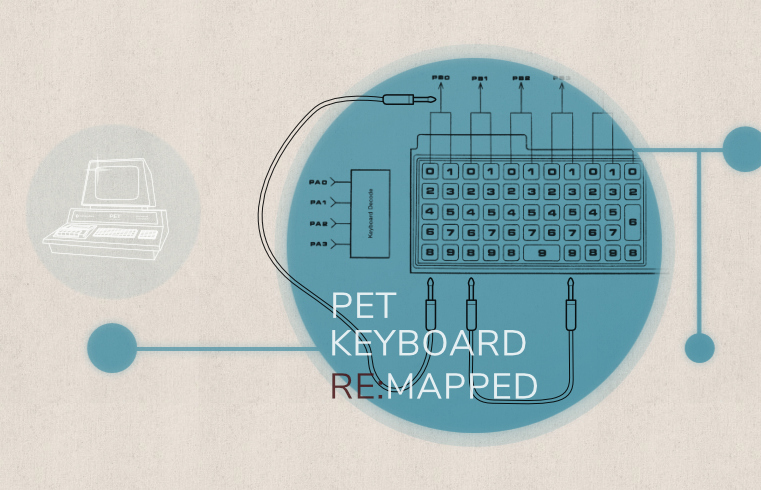
There are already several ways in place to provide for your input needs for the PET 2001 emulator: there are alternative key mappings for some special characters, a virtual keyboard koystick, even a virtual numberpad, in case you need the entire range of PET numbers for input and your laptop doesn’t feature a numeric keypad. However, for this, you have to read the help file and also have to remember what you read in times of need.
Pitfalls, Pitfalls, Everywhere
Say, a game uses the suggestive ↑ for fire. You may know that this is the caret (^) in ASCII, but this may be a rather remote key, maybe requiring modifiers, maybe it’s even a dead key on your keyboard. Well, we try to match most cases, but we may have missed some (it’s quite a challenge to cover, even to know, every international keyboard layout for every system, there is). Yes, we also mapped ↑ to TAB, just in case, but, honestly, did you know that?
Or, let’s say a game features the following key mapping:
| < | ← | • | → | > |
One of those characters, maybe both (e.g., on an English keyboard layout), may be shifted keys.
How awkward!
Or what about:
| [ | ← | • | → | ] |
On a German Mac keyboard, these are OPTION + SHIFT + 5 and OPTION + SHIFT + 6 and aren’t even marked on the keycaps! — Two modifiers at once and no hint. How even more awkward!
Or a game uses the familiar:
| 8 | ||||
| ↑ | ||||
| 4 | ← | • | → | 6 |
| ↓ | ||||
| 2 | ||||
but your keyboard doesn’t have a numeric keypad. Bummer!
Yes, this is a familiar setup and we have you covered, already, just use the keyboard joystick emulation with one of the ready-made configurations mapping the cursor keys to the PET’s numeric keypad. But for this you have to click the correct icon, remember to have CAPS LOCK engaged as an input mode toggle and to be in “Games” mode, etc. It’s not exactly intuitive and it may be easy to forget some of this. Similar applies to the virtual numeric keypad.
Furthermore, there may be all kind of exotic input setups, I havn’t been wise enough to think of. But you really want to play this game with that weird input scheme…!
Wouldn’t it be nice to just have an input mode, where you could configure your setup to your very needs and preferences, maybe map some of the otherwise unused special character keys that your international keyboard provides, like umlauts and accent characters?
User-Definable Key Mapping to the Rescue
Well, this is exactly what the new keyboard mode “Games: Remapped” does: It’s a direct input mode featuring exact and multiple concurrent key presses, just like “Games”, where you can set up your special key mapping. While the keyboard joystick emulation and the virtual numeric keypad are disabled in this mode, real game controllers (gamepads and joysticks via USB) and any of their keyboard mappings are still supported and unaffected by this.
Want to swap Z and Y, because you are on a German keyboard? No problem.
Want to remap some number keys to W A S D? There’s even a preset for this!
If you select “Games: Remapped” from the keyboard menu (below the emulated screen), this shows a dialog with the current custom key mapping (you may have set up already) and controls to configure and modify this:

This should be all pretty self-explanatory. Hopefully so. At least, you should be able to find your way around.
Anyway, close the dialog and you’re ready to go.
If you need a normal input mode, e.g., to enter a name, just switch to normal “Games” mode and then back again.
If you want to change the mapping on the fly, there will be an additional entry “Edit Remapped Keys”.
(This is due to how select elements and their menus work in browsers, they trigger reliably only on a change of the selection. Selecting an already selected item won’t work and other events are not universally supported. So, well, we have to provide something to change to. Arguably, this is better than some other work-arounds, where you can end up with a blank menu label.)
Implementing It
Implementing a symbolic key mapping in the browser that works reliably and supports concurrent key-presses, is already neither intuitive or extactly easy.
Obviously, we have to start quite low-level, climbing up some levels of abstraction, match and mix the input, translating this to PETSCII, and then climb down to the very low-level again, to provide the appropriate signals to the keyboard matrix of the emulated PET. (Did I mention that the graphics keyboard and the business keyboard of the PET feature entirely different keyboad matrices?)
We have to track active keys over their life cycle, as keys go down, are pressed, and go up again (which isn’t exactly the same on every browser and OS), we have to manage dead-keys, etc., keep track of concurrent keys, and so on. If in “Edit” mode, we want to trigger an automatic key repeat, as a key is held pressed for a longer period of time, so that your cursor can whiz across the screen.
None of this is obvious in JavaScript. Stable support is really for US keyboards only. Keys may have different key-codes when they go up or down from when they are pressed (e.g., with modifiers), positional codes may be or may be not available (e.g., for international special keys), keys and their related events may have a descriptive “key” property or not, e.g., related to dead keys or compositional events. In fact, we don’t want any composition events, at all: when you keep S pressed, we want this key to be down, until it goes up again, and not being interrupted by some pup-up to select any of the numerous variations of the letter “S” that the OS may trigger. Also, not all keys feature the same life cycle: some may have pressed key events, other may not or miss another step. And we don’t want the page to scroll down as is the default behavior with SPACE whenever you press that key, but we do want to preserve principal usability and general control functionality for other keys…
It’s quite literally an Enigma, and we have to build it. Not only are we employing multiple wheel sets, i.e. PET keyboard matrices and trigger modes, we’re also mixing various input sources, like the host keyboard, the virtual touch/click keyboard displayed below the screen, emulated keyboard input that may be triggered from a joystick adapter and its optional keyboard translation layer, etc. And now we’re also adding a plug board to this, like in the conversion from the civil Enigma to the military one!
And, to stick with the theme, we also have to intercept and crack the codes of that Enigma, we’ve built already a few years ago!
(This, BTW, isn’t a matter of technical debt. In the end, this integrated nicely, plugging in at a single entry point with no detriment to existing code. It’s more a matter of figuring out which approach may fit the existing structure best, what consequences this may have for any inter-object interfaces and workflows, and so on. And this for code, you haven’t touched – or even much thought on – for years.)
So, it’s a matter of at what abstraction layer to intercept and convert any codes. Also, we don’t want to intercept other sources than the actual host keyboard. The virtual keyboard is already a representation of the actual PET layout, and we don’t want to mess with any joystick codes (this may become really weird and confusing and there’s already a faciltity for custom mappings for this.) And all this has to fit and match with what is already in place, without triggering a major rewrite.
Also, how to organize this best? Some things, like the dialog, are obviously UI related. Some things really belong to the keyboard related code, and then there’s an intermediate layer for controlling the UI. The old story of “there is no real equivalent of MVC (Model View Controller) in the browser”. E.g., it’s probably best to have the definitions for special keys (like HOME for your host keyboard and RVS on the PET) in the keyboard code, where they are functionally used, but we have to somehow funnel this to the UI, as well, while other things that may seem close to this, like preset combinations, are probably rather unrelated to this and best left to the code that controls the dialog.
As we have sorted this out, and opted for a rather high-level entry point for our plug board (like in the Enigma, it sits between the user-facing keyboard and our “wheel set” with associated mechanisms that make our wheels spin — in fact, we’re rather preprocessing Unicode input than translating this directly to PET key strokes, as the dialog may suggest, thus guaranteeing established and familiar behavior), there are still other things to bother with. Like, how this impacts various workflows already established in the browser. E.g., can we expand on existing APIs, or do we have to introduce new ones? And, finally, we have to check and normalize the open inputs in the dialog and maybe reject faulty or nonsensical inputs. Maybe even let the user know why we reject that input…
So this turned out to be more of an effort than I first thought it should be, but we managed.
At least, hopefully so. If not, bare with me (it should be easy to forget about some aspect involved in this, while I can’t think of any at the moment and all tests well) and let me know.
— And that’s all for today. —

Norbert Landsteiner,
Vienna, 2026-06-20
(Updated 2026-06-22)